
What it does
When you ask Eney to organize notes, it will ask where you want to save them. Eney will then organize your notes with clear titles, summaries, and relevant tags. The notebook saves to your chosen location — a local folder, Apple Notes, or others.
Try the prompt
To create the Remove Background skill, paste the following prompt into Eney:
Create a Remove Background skill:
When the user asks to remove the background from an image, ask them to upload an image if they haven’t provided one.
Check whether rembg is installed. If it isn’t, install it before processing the image.
Use rembg to remove the background from the uploaded image.
Preserve the main subject, including fine details such as hair, fur, and thin edges.
Keep the subject unchanged apart from removing the background.
Return the result as a PNG with a transparent background.
Use the original filename and add “-no-bg” before the file extension.
If processing fails, explain the issue briefly and ask the user to provide another image.
Behavioral notes:
Keep the interaction focused on completing the task.
Do not add or replace the background unless the user asks.
What you'll see in Eney
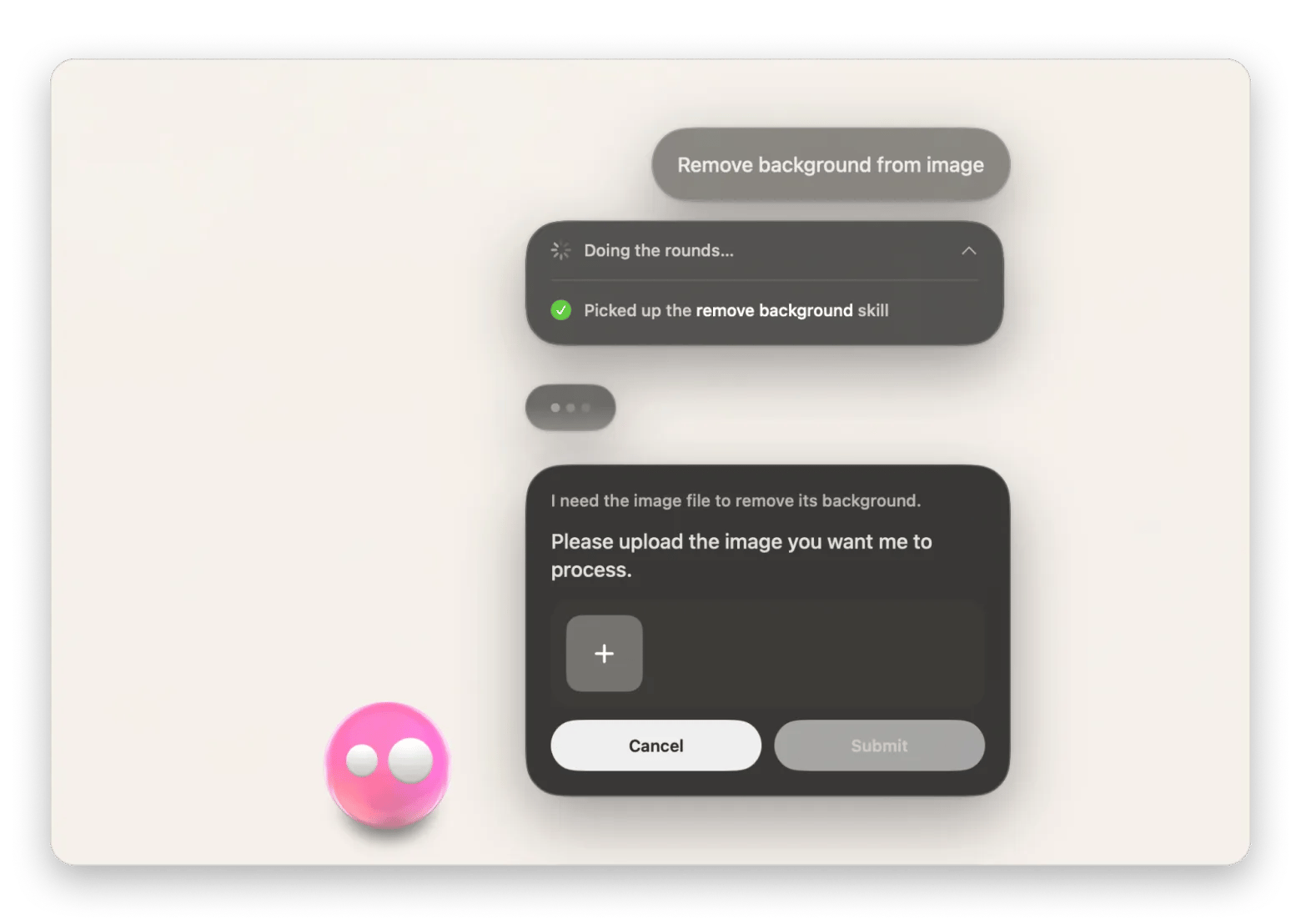
When you type “Remove background” in Eney, the AI assistant will prompt you to upload an image. Once you share it, Eney removes the background and returns the finished image in the conversation. The assistant will save the image in the Downloads folder and share a link in the conversation.
Who this is for
This is for you if you:
Designers who need to cut out products or people for mockups and other visual projects.
Content creators and social media managers preparing images for posts, thumbnails, or other content.
Students who need to clean up images for assignments, presentations, or creative projects.