
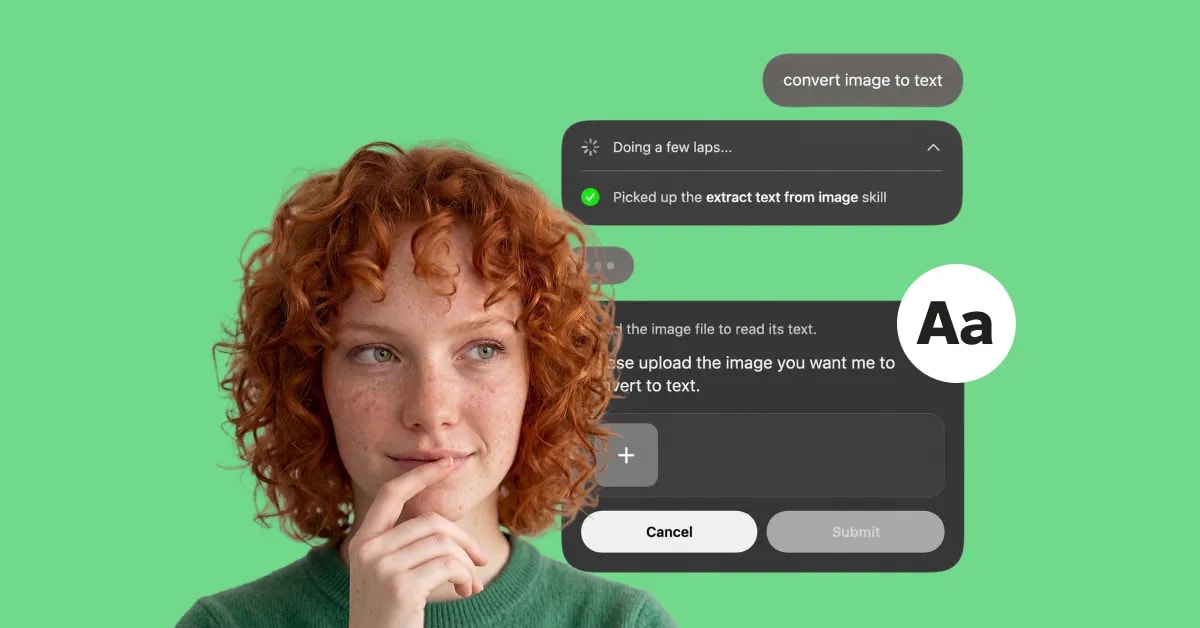
What it does
When you ask Eney to extract text from an image, it will ask you to upload the file. Eney will then extract the text and return it in the conversation with a copy button so you can paste it anywhere.
Try the prompt
To create the Image to Text skill, paste the following prompt into Eney:
Create an Image to Text skill using the following instructions:
1. When the user asks to extract text from an image, ask them to upload an image if they haven’t provided one.
2. Extract all readable text from the uploaded image.
3. Preserve the original wording, spelling, and reading order.
4. Preserve line breaks and basic formatting where they are clear from the image.
5. Include text from all visible areas of the image.
6. If any text is unclear or unreadable, mark it as "[unclear]" instead of guessing.
7. Return the extracted text directly in the conversation.
8. Do not summarize, rewrite, or interpret the extracted text unless the user asks.
Behavioral notes:
• Keep the response focused on the extracted text.
• Use the original formatting as the basis for the output.
What you'll see in Eney
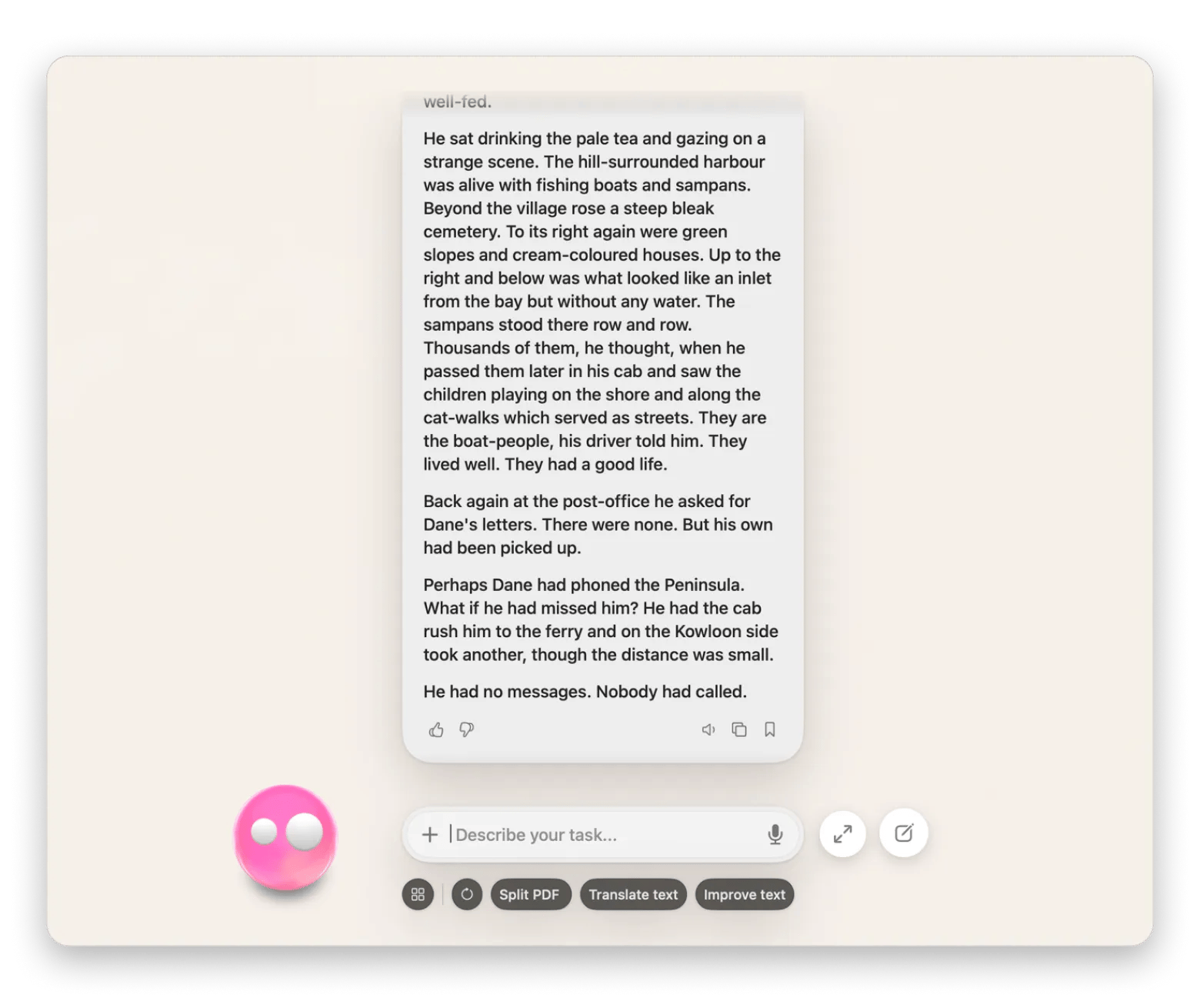
When you mention something related to extracting text from an image, Eney will ask you to upload the image. The AI assistant will then run OCR in the background and return the extracted text in the conversation. You can use the provided copy button to send it to your clipboard.
Who this is for
This is for you if you:
Students who want to turn photographed textbook pages, notes, or lecture slides into editable text
Researchers working with scanned documents or archived material.
Professionals who want to pull text from forms, receipts, or scanned reports without retyping.