
What it does
Eney’s AI upscale image tool uses Real-ESRGAN to upscale low-resolution images and improve their resolution and detail. The AI assistant works without opening a separate app and can help prepare older photos for printing or enlarge graphics while preserving as much detail as possible.
Try the prompt
Paste the following prompt into Eney to create the AI Image Upscaler skill:
Create an AI Image Upscaler skill with the following instructions:
When the user asks to upscale an image, ask them to upload the image if they haven’t provided it.
Check whether Real-ESRGAN is installed and available. If it’s not installed, install and configure it before processing the image.
Use Real-ESRGAN to upscale the uploaded image and improve its resolution.
Use an appropriate Real-ESRGAN model and upscale factor based on the image and the user’s request. If the user specifies a factor, follow it when supported.
Preserve the original image content, proportions, and format as much as possible.
Return the upscaled image in the conversation.
Use the original filename and add “-upscaled” before the file extension. For example, artifact12.png becomes artifact12-upscaled.png.
If the image cannot be processed, explain the issue clearly and suggest the next step.
Behavioral notes:
Keep the interaction focused on producing the upscaled image.
Do not alter the image beyond upscaling unless the user asks.
What you'll see in Eney
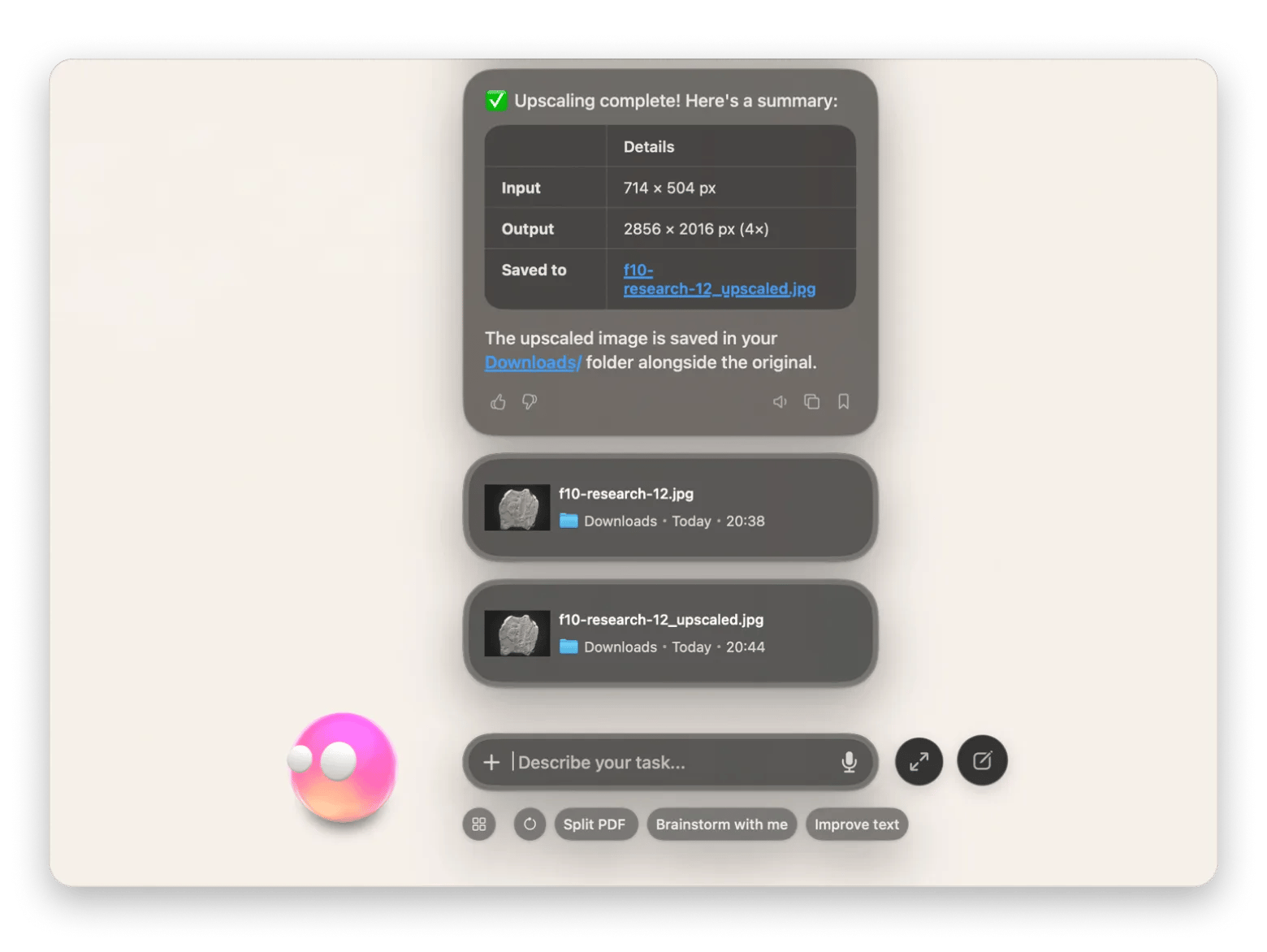
When you ask Eney to upscale an image, it will ask you to upload an image if you haven’t already provided one. The AI assistant then processes the image and creates a new upscaled version on your Mac. You can access it within the conversation.
Who this is for
This is for you if you:
Photographers who often enlarge older or low-resolution photos for printing or archiving.
Designers, as they often increase the size of graphics when the original image is too small for the project at hand.
Content creators who want to improve the quality of images before using them in posts, videos, or other content.